

Tableview#
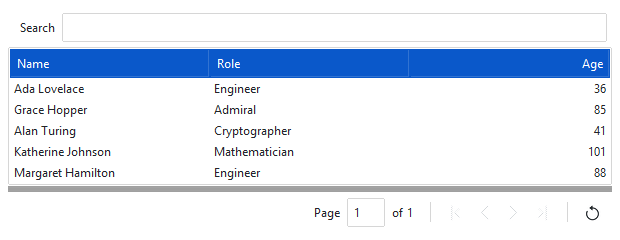
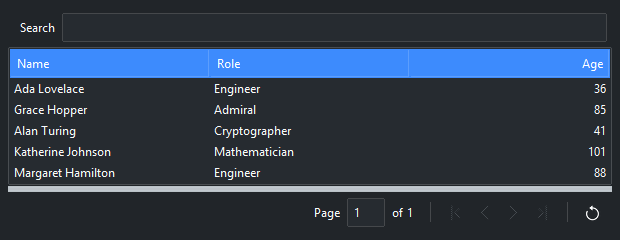
A tableview is a data table — rows and columns with click-to-sort headers,
an optional search bar, pagination, CSV export, and a built-in right-click menu.
Tableview is a ttkbootstrap widget (a real class with its own API, imported
as ttk.Tableview). This page builds one from data, then works through
configuring columns, sorting, filtering, reading and changing rows, the
right-click menu, reacting to a selection, exporting, and the bootstyle
color.
Usage#
Give it coldata (the column headings) and rowdata (a list of rows, each
a list of cell values). Click a header to sort by that column:
import ttkbootstrap as ttk
from ttkbootstrap.widgets import Tableview

app = ttk.App()

table = Tableview(
    app,
    coldata=["Name", "Role", "Age"],
    rowdata=[
        ["Ada Lovelace", "Engineer", 36],
        ["Grace Hopper", "Admiral", 85],
        ["Alan Turing", "Cryptographer", 41],
    ],
    bootstyle="primary",
)
table.pack(fill="both", expand=True, padx=10, pady=10)

app.mainloop()
Configuring columns#
Each entry in coldata can be a plain string (just the heading) or a
dictionary of column settings. Mix the two freely — use a dictionary only for
the columns that need one. The common keys are text (the heading),
width (pixels), anchor (cell alignment — "w", "center",
"e"), and stretch (whether the column grows with the table):
coldata = [
    "Name",                                       # a plain heading
    {"text": "Role", "stretch": True},            # takes up the slack
    {"text": "Age", "width": 60, "anchor": "e"},  # narrow, right-aligned
]

Tableview(app, coldata=coldata, rowdata=rows)
At the table level, height sets how many rows are visible at once (distinct
from pagesize, which is the page length), and autofit=True sizes the
columns to their content.
Search and pagination#
For a large table, turn on the search bar and page the rows. searchable
adds a search field above the table (type and press Enter to filter across all
columns); paginated adds page controls below it, pagesize rows at a
time:
Tableview(
    app,
    coldata=["Name", "Role", "Age"],
    rowdata=rows,
    searchable=True,
    paginated=True,
    pagesize=10,
)
The page controls are wired for you. To move between pages in code, call
goto_first_page(), goto_last_page(), goto_next_page(),
goto_prev_page().
Sorting#
Clicking a header sorts by that column and toggles direction on the next click —
no code needed. To sort from code, call sort_column_data with the column id
(cid, the zero-based column position) and a direction (sort=0 ascending,
sort=1 descending):
table.sort_column_data(cid=2, sort=0) # sort by the Age column, ascending
reset_column_sort() restores the original row order.
Filtering#
Filtering hides the rows that don’t match, leaving the rest in place.
search_table_data(criteria) keeps rows matching a substring across every
column; filter_column_to_value(cid=, value=) keeps rows whose cell in one
column equals a value:
table.search_table_data("Engineer")               # match anywhere
table.search_table_data("Ada", 0)                 # or limit to given columns
table.filter_column_to_value(cid=1, value="Admiral")   # match one column

filtered = table.get_rows(filtered=True)          # the rows now showing
print(table.is_filtered)                          # True while a filter is on
reset_row_filters() clears the filter and shows every row again.
Reading and changing rows#
get_rows() returns the table’s rows as objects — each has a .values list
(its cells) and an .iid (its row id). get_rows(selected=True) returns
just the selected rows:
for row in table.get_rows():
    print(row.values)                 # ["Ada Lovelace", "Engineer", 36]

selected = table.get_rows(selected=True)
insert_row adds a row and delete_row removes one by iid:
table.insert_row("end", ["Katherine Johnson", "Mathematician", 101])
table.delete_row(iid="I001")
table.load_table_data()
insert_row redraws by default (reload=True); pass reload=False when
adding many rows, then call load_table_data() once at the end. Row ids are
generated unless you set iid_field= (a column index or heading) at
construction — that keys each row to your own id, for a stable
delete_row(iid=…) / get_row(iid=…).
To replace the whole dataset at once, call
build_table_data(coldata, rowdata) — it rebuilds the columns and rows from
scratch.
Reacting to a selection#
Pass on_select= a callback to run when the selection changes — it receives
the list of selected rows:
def on_select(rows):
    print("selected", [r.values for r in rows])

Tableview(app, coldata=cols, rowdata=rows, on_select=on_select)
Exporting to CSV#
The table can write its rows to a CSV file. export_all_records() prompts for
a filename and saves every row; export_current_page() and
export_current_selection() save just the current page or the selected rows.
These are also on the right-click menu, so users can export without any code
from you:
ttk.Button(app, text="Export", command=table.export_all_records).pack()
Color#
bootstyle colors the header, selection, and accents from the semantic
palette; stripecolor is a (background, foreground) tuple for an
alternating row tint (pass None for a part you don’t want to change):
Tableview(app, coldata=cols, rowdata=rows,
          bootstyle="info", stripecolor=("#f2f2f2", None))
Reference#
Tableview has a large API beyond this page — TableColumn / TableRow
objects, per-column show/hide, row and column moves, and more filtering and
export variants.
Tableview API reference — the complete option and method list.
See also
Build your first app — builds a form that feeds a
Tableview.Treeview — the native tree/table it’s built on.