

Text#
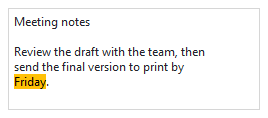
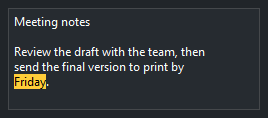
A text widget is a multi-line editor — anything from a comments box to a
code pane. Text is tkinter’s tk.Text; ttkbootstrap themes it to match the
active theme automatically (there is no bootstyle — it follows the theme, and
you fine-tune with fonts, colors, and tags). This page covers inserting and
reading text, indices, editing, tags for styled spans, marks, searching, undo,
and appearance.
Usage#
Create it with a size in width (characters) and height (lines), then
insert text at an index and get it back:
import ttkbootstrap as ttk

app = ttk.App()

text = ttk.Text(app, width=40, height=8)
text.pack(fill="both", expand=True, padx=10, pady=10)

text.insert("end", "Hello world\n")
text.insert("end", "A second line.\n")

print(text.get("1.0", "end-1c"))     # all the text, without the trailing newline

app.mainloop()
Indices — pointing at a position#
Every position in a text widget is an index, written "line.column" —
lines count from 1, columns from 0. So "1.0" is the very start and
"2.5" is line 2, column 5. Several names and modifiers make indices easy to
express:
"end"— just past the last character ("end-1c"is the last character itself, since Text always keeps a trailing newline)."insert"— where the blinking cursor is."1.0 lineend"/"insert linestart"— the end or start of a line."insert wordstart"/"insert +5c"— word boundaries and character offsets.
text.get("insert linestart", "insert lineend")   # the current line's text
line_count = int(text.index("end-1c").split(".")[0])
index(expr) resolves any of these to a concrete "line.column" string.
Editing#
insert(index, text) adds text, delete(start, end) removes a range, and
replace(start, end, text) does both. Insert at "insert" to type where the
cursor is, or at "end" to append:
text.insert("end", "appended\n")
text.delete("1.0", "2.0")                 # remove the first line
text.replace("1.0", "1.5", "Howdy")       # swap the first five characters
To make the widget read-only, set its state to "disabled" — and back to
"normal" before editing from code, since a disabled widget silently
ignores insert and delete too (no error, no change):
text.configure(state="disabled")          # read-only to the user
text.configure(state="normal")            # editable again
Marks — floating positions#
A mark is a named position that floats with the text as it changes — unlike a
plain index, which is just a snapshot. "insert" (the cursor) and "end" are
built-in marks; set your own with mark_set:
text.mark_set("anchor", "insert")         # remember where the cursor is
text.insert("1.0", "prefix ")             # text shifts...
text.index("anchor")                      # ...and the mark moved with it
Searching#
search(pattern, start, stop) returns the index of the next match, or "" if
none. Pass a count variable to learn the match length, and nocase=True or
regexp=True to widen the match. To highlight every match, loop from each
hit’s end:
import tkinter as tk

def highlight_all(text, pattern):
    text.tag_configure("hit", background="#fff3cd")
    count = tk.IntVar()
    start = "1.0"
    while True:
        pos = text.search(pattern, start, "end", count=count, nocase=True)
        if not pos:
            break
        end = f"{pos}+{count.get()}c"
        text.tag_add("hit", pos, end)
        start = end
Undo and redo#
Create the widget with undo=True and Tk maintains an undo stack for you —
Ctrl+Z / Ctrl+Y work out of the box, and you can drive it from code with
edit_undo() / edit_redo(). edit_separator() marks a boundary between
undo steps, and edit_reset() clears the history:
text = ttk.Text(app, undo=True, autoseparators=True)

text.insert("end", "typed something")
text.edit_undo()                          # take it back
edit_modified() reports (or clears) whether the content has changed since it
was last saved — handy for a “you have unsaved changes” prompt.
Appearance#
The text widget picks up the theme’s colors automatically and re-themes on a theme
switch — you don’t style it with bootstyle.
Options the theme doesn’t manage you set directly, and they stick — the editor
font, wrap ("word", "char", or "none"), the width /
height, and line spacing:
ttk.Text(app, font=("Consolas", 11), wrap="word")
The colors and inner margin are theme-managed, though — foreground /
background, insertbackground (the cursor), selectbackground /
selectforeground, and padx / pady. Colors you pass are overridden by
the theme, and any you set later are undone on the next theme switch. To own them,
pass autostyle=False — it opts the widget out of theming so your values persist:
ttk.Text(app, autostyle=False, background="white", foreground="black",
         padx=8, pady=8)
autostyle is specific to the tk-based widgets ttkbootstrap themes (Text,
Canvas, and the like); ttk widgets such as Label take
foreground / background directly instead.
For color that varies within the text — a highlighted span, a colored keyword — use tags, as above.
Scrolling#
A text widget already scrolls on its own — the mouse wheel, Page Up/Down, and
the arrow keys move the view, and it follows the cursor as you type. What it
doesn’t show is a scrollbar. The quickest way to add one is the ready-made
ScrolledText — a text widget with a scrollbar already wired in. It forwards
the text methods (insert, get, tag_*, …) to the inner widget, so you
use it just like a Text:
text = ttk.ScrolledText(app, width=40, height=10, wrap="word", auto_hide=True)
text.pack(fill="both", expand=True, padx=10, pady=10)

text.insert("end", "a lot of text...\n")
auto_hide=True hides the scrollbar until the pointer is over the widget. To
wire a plain Scrollbar to a bare Text yourself, see
Scroll long content.
Reference#
Text is tkinter’s tk.Text; ttkbootstrap themes it but adds no Python API.
The standard library doesn’t document it in full.
Text reference — its options and methods (editing, indices, tags, marks, search, undo).
Tk text manual page — the canonical upstream reference (Tcl 8.6; a subcommand like
tag configureis the Python methodtag_configure).
See also
Entry — a single-line text field.
Scroll long content — adding a scrollbar.