

Scroll long content#
When content outgrows its window — a long form, a wall of log text — you need a
scrollable region. Plain tkinter makes you pair a Canvas (or Text) with
a Scrollbar and wire the two together by hand. ttkbootstrap ships two widgets
that do that wiring for you: ScrolledFrame for
arbitrary widgets, and ScrolledText for text.
A scrollable frame#
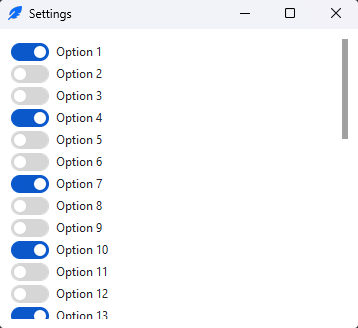
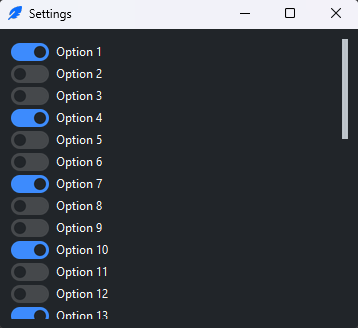
ScrolledFrame is a frame with a scrollbar already attached. Treat it as the
parent for your content — pack or grid widgets into it and it scrolls when
they overflow:
import ttkbootstrap as ttk

app = ttk.App(title="Settings", size=(360, 300))

scroller = ttk.ScrolledFrame(app, auto_hide=True)
scroller.pack(fill="both", expand=True, padx=10, pady=10)

for i in range(40):
    option = ttk.Checkbutton(scroller, text=f"Option {i + 1}", bootstyle="round toggle")
    option.pack(anchor="w", pady=2)

app.mainloop()
auto_hide=Truehides the scrollbar until the pointer enters the region, then shows it — tidy for dense UIs. Leave it off (the default) to keep the scrollbar always visible.The frame scrolls vertically only.
The viewport is a fixed size — the content never stretches it, which is the whole point: the overflow scrolls instead. It defaults to 300×200; pass
height=/width=to change that, orpack(fill="both", expand=True)as above to let it fill its parent.
Note
pack/grid/place on a ScrolledFrame lay out the whole assembly
— frame plus scrollbar — so most parents just work. A Notebook or
PanedWindow is different: it takes a child rather than laying one out, so
give it scroller.container:
notebook.add(scroller.container, text="Settings")
A scrollable text box#
ScrolledText is a themed multi-line text widget with its scrollbar attached.
The underlying tkinter.Text is exposed as .text — reach through it
for the standard Text API (insert, get, delete, tags):
import ttkbootstrap as ttk

app = ttk.App(title="Log", size=(480, 320))

log = ttk.ScrolledText(app, auto_hide=True, padding=10)
log.pack(fill="both", expand=True)

log.text.insert("end", "Application started\n")
log.text.insert("end", "Loading data…\n")
log.text.see("end")            # scroll to the newest line

app.mainloop()
.textis the realTextwidget — anything the Text reference documents works on it.Pass
hbar=Truefor a horizontal scrollbar too (off by default;vbaris on). Turning it on also stops the text wrapping — long lines run off to the right and scroll sideways instead, which is what the horizontal bar is for.see("end")keeps the newest content in view — the usual move for a log.
Making a log read-only
A Text is editable by default. To use one purely for output, set its
state to "disabled" and flip it back around each write — a disabled
Text silently discards insert, with no error, so the line simply never
appears:
log.text.configure(state="normal")
log.text.insert("end", line)
log.text.configure(state="disabled")
See also
Scrolled — the widget catalog entry for both widgets.
Arranging widgets — packing and gridding content.
Run background work — streaming output into a
ScrolledTextwithout freezing the UI.