

Dialogs#
A dialog is a small pop-up window for a single interaction — telling the user something, asking a question, or collecting one value. Working with a dialog is always the same three-step shape: show it, read what it returns, act on that. Every ttkbootstrap dialog is modal (it blocks the rest of the app until the user answers) and hands its result straight back from the call — there are no callbacks to wire up.
ttkbootstrap ships themed dialogs that replace tkinter’s plain stdlib ones, reached through Messagebox and Querybox:
Messagebox — tell the user something, or ask a question with fixed buttons (OK, yes/no, retry/cancel).
Querybox — get a value back: a string, a number, a date, a font, a color, or a file path.
Reach both as ttk.Messagebox / ttk.Querybox, or import them directly
(from ttkbootstrap import Messagebox).
Asking a question — Messagebox#
A Messagebox call pops the dialog, blocks until the user answers, and
returns the label of the button they pressed — or None if they dismiss it
with Escape or the window’s ✕. You branch on that label. A “close with unsaved
changes” prompt is the archetypal example — three buttons, three paths:
import ttkbootstrap as ttk
from ttkbootstrap import Messagebox

app = ttk.App()

def on_quit():
    answer = Messagebox.yesnocancel(
        "Save changes before closing?", "Unsaved changes", parent=app)
    if answer == "Yes":
        save()
        app.destroy()
    elif answer == "No":
        app.destroy()          # discard and close
    # "Cancel" or None → fall through: stay open, do nothing
Reading it back: yesnocancel gives you "Yes" / "No" / "Cancel",
and — crucially — None if the window is simply closed, which you handle the
same as Cancel.
Pick the method for the buttons your question needs:
Method |
Buttons / use |
|---|---|
show_infoshow_warningshow_errorshow_question |
A message with the matching icon and a single OK button by default
(any of them also accepts a custom |
okokcancel |
Confirm an action (returns |
yesnoyesnocancel |
A yes/no decision, optionally with a third Cancel out. |
|
Offer a retry after a failure. |
The first two arguments are the message and title; everything else is
keyword-only. The most important keyword is parent — pass it and the dialog
centers over that window and scopes its modality to it (without it, the dialog
centers on screen and grabs the whole application):
Messagebox.show_error("The file could not be opened.", "Error", parent=app)
show_warning and show_error also ring the system bell by default; pass
alert=False to silence it.
Custom buttons#
When the fixed sets don’t fit, pass your own buttons as "label:bootstyle"
strings — the color after the colon is any bootstyle color. The return value is still
whichever label was clicked, so name them for how you’ll test them:
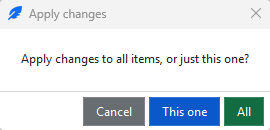
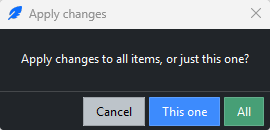
choice = Messagebox.show_question(
    "Apply changes to all items, or just this one?", "Apply changes",
    buttons=["Cancel:secondary", "This one:primary", "All:success"],
    parent=app,
)
if choice == "All":
    apply_to_all()
elif choice == "This one":
    apply_to_current()
Note
The return value is the button’s displayed text. With localization active
the labels are translated, so a bare == "Yes" can miss — compare against
the same source string you passed, or drive off the button position. See
Localization.
Collecting a value — Querybox#
Where a Messagebox returns a button, a Querybox returns a typed value — or
None if the user cancels. The pattern is get, check for None, use:
from ttkbootstrap import Querybox

new_name = Querybox.get_string(
    "Rename to:", "Rename", initialvalue=item.name, parent=app)
if new_name:                          # None = cancelled, "" = empty submit
    item.rename(new_name)
The full set — every method returns its value or None on cancel:
Method |
Returns (or |
|---|---|
|
the entered |
|
an |
|
a |
|
the chosen |
|
a |
|
a |
|
a |
get_open_filenameget_open_filenamesget_save_filenameget_directory |
a file path / paths (see File dialogs). |
The number pickers validate for you — a value outside minvalue /
maxvalue keeps the dialog open until it’s corrected or cancelled, so a
returned number is always in range:
qty = Querybox.get_integer(
    "Quantity:", "Order", initialvalue=1, minvalue=1, maxvalue=99, parent=app)
if qty is not None:
    add_to_cart(item, qty)
Note
get_string distinguishes an empty submit ("") from a cancel
(None); the if new_name: test above treats both as “nothing to do,”
which is usually what you want. When you need to tell them apart — an empty
value is meaningful — test is not None explicitly. Every other picker
returns only its value or None.
The pickers#
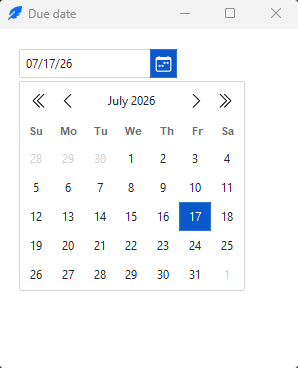
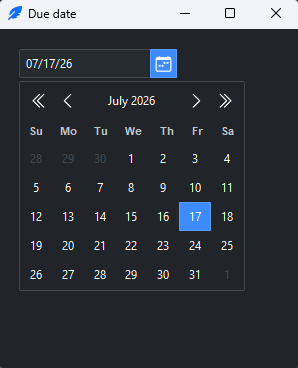
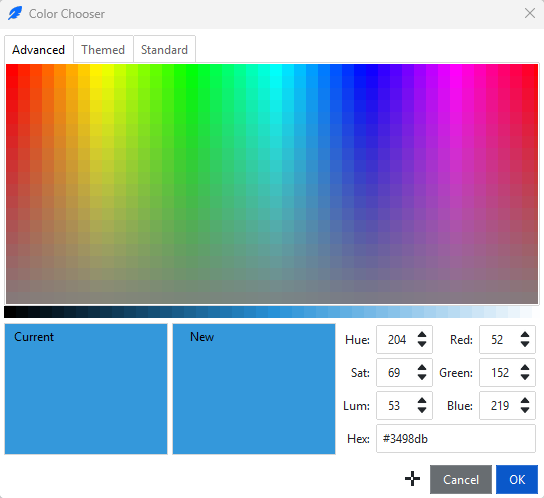
get_date, get_font, and get_color open richer choosers. Their first
argument is the parent window (the dialog centers on it), and the value
they return is ready to use directly:
from datetime import date

due = Querybox.get_date(app, title="Due date", start_date=date.today())
if due is not None:
    due_entry.delete(0, "end")
    due_entry.insert(0, due.isoformat())

font = Querybox.get_font(app)
if font is not None:
    heading.configure(font=font)      # the Font object drops straight in
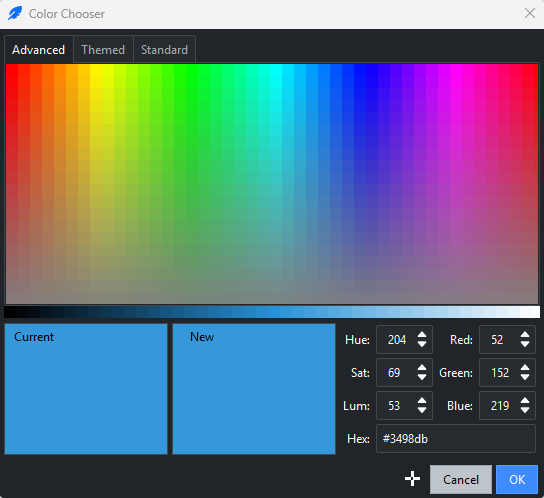
get_color returns a ColorChoice — a named tuple carrying the same color in
three models, so you take whichever the calling code needs:
picked = Querybox.get_color(app, initialcolor="#3498db")
if picked is not None:
    swatch.configure(background=picked.hex)   # '#RRGGBB'
    r, g, b = picked.rgb                       # each 0–255
    h, s, l = picked.hsl                       # h 0–360, s/l 0–100
File dialogs#
Opening and saving files use the native OS dialog — the one standard dialog
ttkbootstrap deliberately does not restyle, because the OS draws it and users
expect their platform’s file picker. They’re still reached through Querybox,
so a path is fetched like any other value, and — like the other Querybox
methods — they return None on cancel:
path = Querybox.get_open_filename(
    parent=app,
    filetypes=[("Text files", "*.txt"), ("All files", "*.*")],
)
if path is not None:                  # None means cancelled
    with open(path) as f:
        load(f.read())

save_to = Querybox.get_save_filename(parent=app, defaultextension=".txt")
folder  = Querybox.get_directory(parent=app)
many    = Querybox.get_open_filenames(parent=app)   # a tuple of paths
Each forwards its keyword arguments (title, filetypes, initialdir,
defaultextension, …) to the underlying tkinter.filedialog function. The
full module is available as ttk.filedialog for a variant these four don’t
cover — for example askopenfile, which returns an open file object:
ttk.filedialog.askopenfile(parent=app) # returns an open file object, not a path
Note
File dialogs are the only stdlib dialog ttkbootstrap keeps. The others —
messagebox, simpledialog, colorchooser, the font chooser — are
superseded by Messagebox / Querybox above; reach for those to get
themed, consistent dialogs.
Driving the dialog classes directly#
Messagebox and Querybox are thin conveniences over two classes —
MessageDialog and QueryDialog — that you can use directly when you need
more than a one-line call: to set a default button, place the dialog yourself, or run it
without blocking. The three-step shape becomes explicit: construct, show,
read .result.
dialog = ttk.MessageDialog(
    "Delete this record? This cannot be undone.",
    title="Delete",
    buttons=["Cancel:secondary", "Delete:danger"],
    default="Cancel",              # focused button; Return activates it
    parent=app,
)
dialog.show()                      # modal — blocks until a button is pressed
if dialog.result == "Delete":
    delete()
Place it yourself. show centers on the parent by default; pass
position=(x, y) to pin the top-left corner instead — handy for a dialog that
should appear next to the widget that opened it:
dialog.show(position=(event.x_root, event.y_root))
Run it without blocking. Pass a command — a plain zero-argument callable
run when a button is pressed — and show it with wait_for_result=False. The
call returns immediately and your callback fires when the user answers, which
suits an event-driven flow where you don’t want to stop the world:
def on_dismissed():
    status.configure(text="Reminder dismissed")

note = ttk.MessageDialog("Don't forget to save.", buttons=["OK:primary"],
                         command=on_dismissed, parent=app)
note.show(wait_for_result=False)   # non-modal; on_dismissed runs on OK
Building a fully custom dialog#
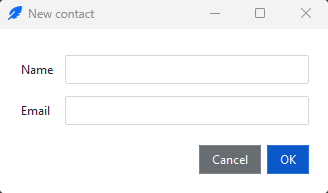
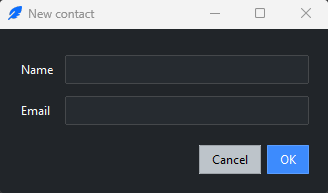
When you need your own widgets and layout, build the dialog from a Toplevel:
add your widgets, grab_set() to make it modal, wait_window() to block
until it closes, and leave the result on an attribute for the caller to read.
That is the same modal mechanism the facades use, applied to a window you own —
the Open a second window recipe walks
through a reusable version, and Input validation covers checking the fields before you
accept them.
See also
Windows — the focus, modality, and lifecycle mechanics the dialogs are built on.
Input validation — validating fields in a form dialog.
Open a second window — rolling your own.