

Structuring an app#
The Quickstart shows the smallest possible window, and Build your first app walks through one complete program. This page steps back to the decisions that keep an app organized as it grows: which root to use, how to enforce a single root, how to split the interface into components, and how to shut down cleanly.
The application root#
Every app has one root window. Use App for it — the
enhanced root that creates the window and installs a theme in one step:
import ttkbootstrap as ttk

app = ttk.App(title="My App", theme="bootstrap-light", size=(600, 400))
app.mainloop()
App is a drop-in replacement for tkinter.Tk. (It is also exported under its
longtime alias ttk.Window — both name the same class.) If you must keep a bare
tkinter.Tk root — say, in existing code — attach the styling engine to it by
creating a Style; the engine binds to whichever root
exists. Prefer App for new code.
mainloop() always comes last: it hands control to tkinter’s event loop, which
draws the window and dispatches events until the user closes it.
One root, many windows#
The styling engine is a singleton bound to that first root, so an app has one
application root. Creating a second App while the first is alive raises
RuntimeError. Extra windows are Toplevel windows, which
attach to the root you already have:
class MyApp(ttk.Frame):
    def open_settings(self):
        win = ttk.Toplevel(title="Settings")
        ttk.Label(win, text="Settings go here", padding=20).pack()
A Toplevel is a full window — title, geometry, close button — that shares the
app’s theme and event loop. Reach for one whenever you need a second window: a
dialog, a tool palette, a detail view.
Put the interface in a frame#
Rather than piling widgets directly onto the root, build your interface inside a
Frame subclass. A frame is a container; subclassing it keeps
a screen’s widgets and the state they share together in one object, so the app
stays organized as it grows:
import ttkbootstrap as ttk
from ttkbootstrap.constants import *


class MyApp(ttk.Frame):
    def __init__(self, master):
        super().__init__(master, padding=16)
        self.pack(fill=BOTH, expand=YES)
        self._build_ui()

    def _build_ui(self):
        ttk.Label(self, text="Ready", font="-size 14").pack()


app = ttk.App(title="My App", theme="bootstrap-light", size=(600, 400))
MyApp(app)
app.mainloop()
This is the shape Build your first app uses: the root
is a plain App, and the interface lives in a Frame subclass that packs
itself into that root.
Compose components#
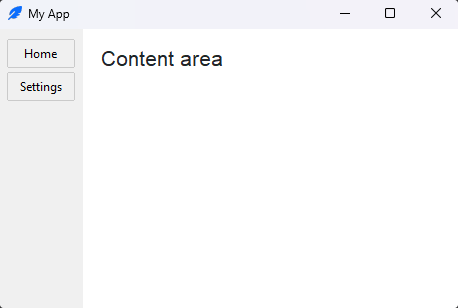
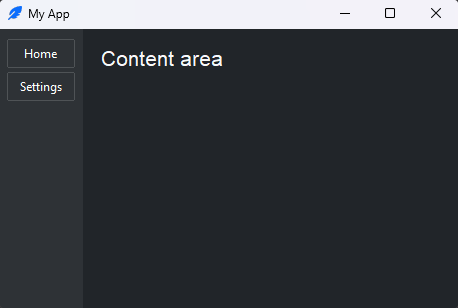
An app’s interface is a tree of frames. Give each distinct part — a sidebar, a
toolbar, a content panel — its own Frame subclass, then let a parent frame
assemble them. Each component owns its widgets and stays testable and reusable on
its own:
class Sidebar(ttk.Frame):
    def __init__(self, master):
        super().__init__(master, padding=8, bootstyle="@card")
        ttk.Button(self, text="Home").pack(fill=X, pady=2)
        ttk.Button(self, text="Settings").pack(fill=X, pady=2)


class Content(ttk.Frame):
    def __init__(self, master):
        super().__init__(master, padding=16)
        ttk.Label(self, text="Content area", font="-size 16").pack(anchor=NW)


class MyApp(ttk.Frame):
    def __init__(self, master):
        super().__init__(master)
        self.pack(fill=BOTH, expand=YES)
        Sidebar(self).pack(side=LEFT, fill=Y)
        Content(self).pack(side=LEFT, fill=BOTH, expand=YES)
Subclass a frame, not the root#
Building the interface in a Frame subclass and leaving App as a plain root
(as above) keeps your UI independent of the window — easy to drop into a
Toplevel, reuse elsewhere, or test on its own.
Subclassing App directly also works, and can read well for a single-window app,
but it ties the interface to the root:
class MyApp(ttk.App):
    def __init__(self):
        super().__init__(title="My App", theme="bootstrap-light", size=(600, 400))
        ttk.Label(self, text="Built on App directly", padding=16).pack()


MyApp().mainloop()
Prefer the frame-subclass pattern unless you have a reason not to.
Shut down cleanly#
mainloop() returns when the last window closes. If your app holds resources —
a file, a database connection, a background thread — release them on the way out.
Pass a handler to on_close (available on App and every Toplevel); it
runs when the user closes the window, and the window is destroyed for you
afterward:
def save_and_exit():
    # persist settings, stop background work, close connections...
    ...

app = ttk.App(title="My App", on_close=save_and_exit)
app.mainloop()
The handler takes no arguments, and you do not call destroy() yourself. To
prompt before closing — say, when there are unsaved changes — return False to
cancel the close and keep the window open:
def confirm_close():
    if self.unsaved and ttk.Messagebox.yesno("Discard unsaved changes?") != "Yes":
        return False   # user chose No — stay open

app.on_close(confirm_close)
on_close covers the title-bar close button on Windows, macOS, and Linux. On
macOS the application menu’s Quit (⌘Q) is a separate, app-wide action; wire
it with ttkbootstrap.Menu.on_quit(). Individual widgets that start timers or
traces release them in their own destroy() — ttkbootstrap’s shipped widgets
already do.
See also#
Build your first app — the frame-subclass pattern applied to a complete program.
Windows — the full
App/Toplevelsurface: positioning, icons,window_type, and light/dark mode.How a tkinter app runs — the event loop behind
mainloop().Migrating to 2.0 — the single-root rule as an upgrade note.