

The widget model#
Everything you put on screen is a widget — a button, a label, a frame — and they all follow the same handful of rules: every widget lives in a tree under a parent, is configured through options, carries a set of states, and moves through a lifecycle you manage. Learn these once and every widget behaves predictably.
The widget tree#
A widget’s first argument is its parent (its master). The App root sits
at the top; frames and other containers nest under it; leaf widgets like buttons
and labels sit inside those. That parent-child chain is the widget tree:
import ttkbootstrap as ttk

app = ttk.App()                       # the root
toolbar = ttk.Frame(app)              # a container under the root
ttk.Button(toolbar, text="Save")      # a button under the toolbar
toolbar.pack()
The tree decides three things: where a widget can be placed (only inside its parent — see Arranging widgets), what it inherits (the theme, and options like a cursor), and its lifetime — destroying a widget destroys everything under it.
Walking the tree#
You never have to keep your own map of what contains what: every widget can tell
you. Going up, master is the parent widget:
save.master # the toolbar Frame -- the widget object itself
Going down, winfo_children() returns a widget’s children as a list, in
stacking order:
toolbar.winfo_children()      # [<Button ...!button>, <Button ...!button2>]

for child in toolbar.winfo_children():
    child.state(["disabled"])
There is also a children dict, keyed by each child’s own name — note it’s
an attribute, not a method, and the names are Tk’s unless you chose them:
toolbar.children # {'!button': <Button ...>, '!button2': <Button ...>}
Note
Every widget also has a path name — ".!frame.!button" — that spells out
its position in the tree, and that’s what str(widget) gives you. The path is
how Tk — the toolkit tkinter is built on — identifies the widget;
What tkinter wraps tells
that story. It matters here because winfo_parent() returns the parent’s
path, a string, while master returns the widget:
save.master           # <Frame object .!frame>   -- the widget
save.winfo_parent()   # '.!frame'                -- a string
Reach for master when you want the parent. If you only have a path, turn it
back into a widget with nametowidget:
save.nametowidget(save.winfo_parent()) # the toolbar Frame
winfo_children() goes one level down only — the root’s children are its
frames, not the buttons inside them. To reach the whole tree, recurse:
def walk(widget, depth=0):
    print("   " * depth + widget.winfo_class())
    for child in widget.winfo_children():
        walk(child, depth + 1)

walk(app)
Tk
   TFrame
      TButton
      TButton
   TFrame
      TEntry
winfo_class() reports the widget’s Tk class ("TButton"), which is what
that walk prints. Finally, winfo_toplevel() jumps straight to the window a
widget lives in, however deep it sits — useful when a callback needs the window
but only has the widget. See Widget & screen info for
the full introspection set.
Options configure a widget#
Every widget is customized through options — text, width, image,
cursor, and so on. An option is a named setting that lives on the widget;
you give it a value when you create the widget, and you can read or change it any
time after:
btn = ttk.Button(app, text="Save", width=12)
That is the whole idea. What trips people up is that tkinter gives you two interchangeable spellings for reading and writing options afterward — a method pair, and an index syntax. Both are used freely in real code and throughout these docs, so it is worth learning both now.
Setting an option#
configure takes the option as a keyword argument. The index syntax assigns to
the option by name. These two lines do exactly the same thing:
btn.configure(text="Saved")
btn["text"] = "Saved"
Only configure can set several options in one call, which is usually why you
would pick it:
btn.configure(text="Saved", width=8, bootstyle="success")
Note
config is an older alias for configure — the same method under a second
name, kept for compatibility. You will meet it in older code and in other
people’s examples. Prefer configure; these docs use it everywhere.
Reading an option#
cget takes the option name as a string. The index syntax reads the same
option. Again, these are the same thing:
btn.cget("text")     # -> "Saved"
btn["text"]          # -> "Saved"
The index syntax is the one that surprises newcomers: a widget is not a
dictionary, but it deliberately supports [...] as a shorthand for its
options. btn["text"] reads, and btn["text"] = "Saved" writes. Which
spelling you use is a matter of taste — pick one and be consistent.
Asking for an option the widget doesn’t have raises TclError, whichever
spelling you use:
btn.cget("nope") # TclError: unknown option "-nope"
The message is Tk’s, in Tk’s own spelling — hence the leading dash on an option you wrote without one. What tkinter wraps explains the seam.
What comes back#
You get back Tk’s value for the option, not necessarily the Python object you passed in. The type follows the option:
btn.cget("text")        # 'Saved'   -- a string
btn.cget("width")       # 8         -- an int, even if you set the string "8"
btn.cget("padding")     # (5,)      -- a tuple
Two options are worth calling out, because the value you get back is a name Tk uses internally rather than the thing you handed over:
btn.cget("command")           # '...<lambda>'  -- not your function
entry.cget("textvariable")    # 'PY_VAR0'      -- not your StringVar
So don’t use cget to get a callback or a variable back out. Keep your own
reference to anything you need later — read the value through the variable
itself (size.get()), not through the widget. Why Tk keeps a name rather
than your object is part of the seam What tkinter wraps describes.
Finding out what a widget accepts#
keys() lists the option names a widget supports — handy at a prompt when you
can’t remember the spelling:
btn.keys() # ['command', 'default', 'takefocus', 'text', ...]
configure() with no arguments returns a dict of every option, mapping the
name to its full spec — (name, dbName, dbClass, default, current). Passing a
single option name returns just that one spec, which is the way to see an
option’s default alongside its current value:
btn.configure("text")     # ('text', 'text', 'Text', '', 'Saved')
#                            name    dbName  dbClass default current
The parts you will actually read are the first and last two — the option’s name,
its default, and its current value. dbName and dbClass are the option’s
names in Tk’s option database, an older configuration mechanism covered in the
Configuration reference.
For the authoritative per-widget option list, each widget’s page in the Widgets catalog and the Widgets reference are the place to look.
Note
bootstyle is just another option. Everything on this page applies —
ttk.Button(app, text="Save", bootstyle="success") or
btn.configure(bootstyle="success") or btn["bootstyle"] = "success".
That’s the whole styling API; see
Styling with bootstyle.
States (the ttk way)#
ttk keeps the familiar classic-tkinter state="disabled" option as a shortcut,
but underneath, every ttk widget carries a set of state flags —
disabled, active, pressed, focus, selected, readonly,
invalid — that you turn on and off. This flag set is the real model: it is what
lets a theme restyle a widget per state automatically.
Set a flag with state([...]), clear it by prefixing !, and test one with
instate([...]):
btn.state(["disabled"])            # turn on: greys out, stops responding
btn.state(["!disabled"])           # turn off: back to normal

if btn.instate(["disabled"]):      # test a flag
    ...
The same flags drive both behavior and appearance, which is why you never hand-color a disabled or focused widget — the theme already maps every state.
The state="disabled" option is a coarse shortcut over these flags: it
understands only normal/disabled (and readonly on entry-style
widgets), so state([...]) is the way to reach the rest (active,
pressed, invalid, …). One caveat that follows from this: cget("state")
reports only what the option was last set to, not the live flags — so after
widget.state(["disabled"]) it can still read "normal". To ask whether a
flag is set, use instate([...]), never cget("state").
Lifecycle#
A widget passes through three stages: it is created, displayed, and eventually destroyed.
Creating a widget places it in the tree but does not draw it. It exists right away — you can configure and query it — yet it stays invisible until a geometry manager maps it onto the screen:
btn = ttk.Button(app, text="Save")   # exists now, but nothing is drawn
btn.winfo_ismapped()                 # -> False
btn.pack()                           # display it
btn.winfo_ismapped()                 # -> True
That gap is deliberate — you build a whole subtree, then lay it out. It is also why a widget’s master is fixed at creation: you cannot reparent a widget later. To move one, destroy it and rebuild it under the new parent.
Destroying a widget removes it for good with destroy(). The call
cascades — destroying a container destroys every widget under it, so tearing
down a screen is a single call on its frame. Afterward the widget is gone and its
methods raise TclError, so guard with winfo_exists() when a widget might
already be destroyed:
panel.destroy()            # removes the panel and all of its children
panel.winfo_exists()       # -> False
# panel.configure(...)     # would raise TclError: invalid command name
Cleaning up. destroy() frees the widget, but not the things you attached
around it — a repeating after timer, a variable trace, a binding on
another widget. Those keep firing into a widget that no longer exists. Release them
as the widget is torn down; the <Destroy> event fires for exactly this:
job = app.after(1000, tick)                       # a repeating timer
widget.bind("<Destroy>", lambda e: app.after_cancel(job))
You rarely write this by hand: ttkbootstrap’s shipped widgets already release their
own timers and traces on destroy, and on_close gives the whole app a place to shut
down cleanly. Reach for <Destroy> cleanup only for long-lived resources you
create yourself. See Events & callbacks for after and traces in depth.
Putting it together#
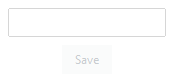
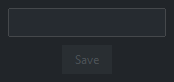
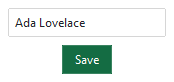
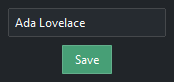
A small tree, configured, with a state toggled:
import ttkbootstrap as ttk

app = ttk.App(title="Widget model")

panel = ttk.Frame(app, padding=10)
panel.pack()

name = ttk.Entry(panel, width=24)
name.pack(pady=(0, 8))

save = ttk.Button(panel, text="Save", bootstyle="success")
save.pack()

save.state(["disabled"])                 # start disabled
name.bind("<KeyRelease>",
          lambda e: save.state(["!disabled" if name.get() else "disabled"]))

app.mainloop()
See also
How a tkinter app runs — the loop that drives callbacks.
What tkinter wraps — why widgets have path names, options carry a dash, and errors arrive as
TclError.Events & callbacks —
aftertimers, variable traces, and the<Destroy>event.Cursors — the platform-dependent
cursoroption.
Reference#
Configuration —
configure,cget, andkeysin full.Widgets reference — the options each widget accepts.