

Layout with grid#
grid arranges widgets in rows and columns, like a table — it’s the manager
you’ll reach for in most real layouts. The best way to learn it is to build
something, so we’ll grow a small sign-in form one step at a time. Each step adds a
single idea and fixes a single problem.
Step 1 — place widgets in cells#
Give each widget a row and a column and grid drops it into that cell.
You never declare the rows and columns; they spring into being as you refer to
them:
import ttkbootstrap as ttk

app = ttk.App(title="Sign in")
form = ttk.Frame(app, padding=20)
form.pack(fill="both", expand=True)

ttk.Label(form, text="Email").grid(row=0, column=0)
ttk.Entry(form).grid(row=0, column=1)
ttk.Label(form, text="Password").grid(row=1, column=0)
ttk.Entry(form).grid(row=1, column=1)

app.mainloop()
The labels line up in column 0 and the entries in column 1 — a tidy two-by-two table. But notice each widget sits centered in its cell, so a short label like “Email” floats in the middle of its column instead of sitting next to its field. That’s the first thing to fix.
Step 2 — align widgets in their cells with sticky#
sticky pins a widget to one or more edges of its cell, named by compass point
— n, s, e, w. Pin the labels to the west (left) edge so they sit
against their fields:
ttk.Label(form, text="Email").grid(row=0, column=0, sticky="w")
Combine points to stretch: "ew" (west and east) makes a widget span the
full width of its cell. Stretch the entries across column 1:
ttk.Entry(form).grid(row=0, column=1, sticky="ew")
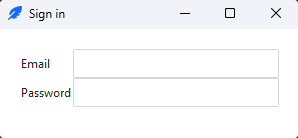
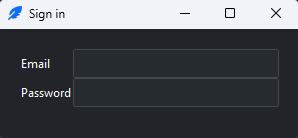
Now the labels sit left and the entries widen to fill their column.
Step 3 — add breathing room with padx / pady#
Everything is cramped against everything else. padx and pady add space
around a widget (a two-tuple gives different amounts on each side):
ttk.Label(form, text="Email").grid(row=0, column=0, sticky="w", padx=5, pady=5)
This is one of three spacing layers — Spacing on the Arranging widgets page maps them all.
Step 4 — make it resize with weight#
Widen the window and the form doesn’t follow: the fields stay their original size
and an empty gap opens on the right. That’s because grid columns don’t grow by
default. Give a column a weight and it claims a share of any extra width the
window offers:
form.columnconfigure(1, weight=1) # column 1 absorbs the extra space
Now column 1 grows with the window — and because the entries are sticky="ew",
they stretch to fill it. This pairing is the whole secret to a responsive grid:
The key idea
weight on the column so the cell grows; sticky on the widget so it
grows with the cell. You almost always need both — one without the other
leaves either an empty gap or a stuck widget. A weight of 0 (the default)
means “stay at content size”; larger weights split the spare space in
proportion.
Sizing also flows the other way: a container with gridded children shrinks or
grows to fit them, so a width/height you set on the container yields to
the content. Call grid_propagate(False) on the container to keep the fixed
size instead (the grid counterpart of pack_propagate from
Layout with pack).
Step 5 — span several cells#
A widget can cover more than one cell with columnspan (or rowspan). Add a
Sign-in button under the fields, spanning both columns and pinned to the right:
ttk.Button(form, text="Sign in", bootstyle="primary").grid(
    row=2, column=0, columnspan=2, sticky="e", pady=(10, 0))
The finished form#
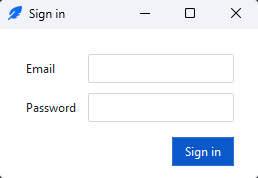
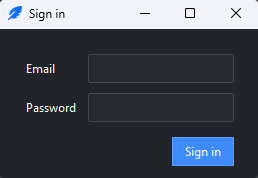
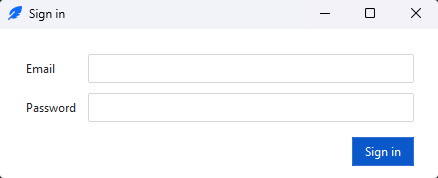
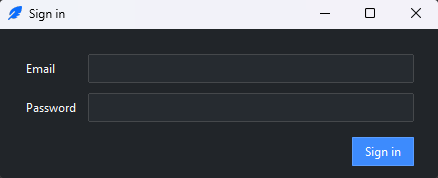
Every step together — a form that lines up, has room to breathe, and grows with the window:
import ttkbootstrap as ttk

app = ttk.App(title="Sign in")

form = ttk.Frame(app, padding=20)
form.pack(fill="both", expand=True)
form.columnconfigure(1, weight=1)

ttk.Label(form, text="Email").grid(row=0, column=0, sticky="w", padx=5, pady=5)
ttk.Entry(form).grid(row=0, column=1, sticky="ew", padx=5, pady=5)

ttk.Label(form, text="Password").grid(row=1, column=0, sticky="w", padx=5, pady=5)
ttk.Entry(form, show="•").grid(row=1, column=1, sticky="ew", padx=5, pady=5)

ttk.Button(form, text="Sign in", bootstyle="primary").grid(
    row=2, column=0, columnspan=2, sticky="e", padx=5, pady=(10, 0))

app.mainloop()
Recap#
A cell sizes to its content; refer to a
row/columnto bring it into being.stickypositions or stretches a widget within its cell.weight(viacolumnconfigure/rowconfigure) decides which rows/columns absorb extra space — pair it withstickyto make widgets grow.columnspan/rowspanlet a widget cover several cells.
For every option, see the Grid reference.
See also
Layout with pack for stacking layouts and how to combine the two by nesting frames.