

Menus#
Menus are built from a single widget — Menu, imported as
ttk.Menu. The same widget plays three roles depending on how you attach it:
a menu bar across the top of a window, a cascade that drops down from a
bar entry, and a popup at the pointer for a right-click context menu. This
guide builds each in turn, then covers the part that trips people up — how a menu
bar differs across Windows, Linux, and macOS, where the application menu follows
its own rules.
Note
Menu is a classic tk widget, not a themed ttk one, so it takes no
bootstyle — but ttkbootstrap colors it to match the active theme
automatically.
A menu bar#
Build the bar, build one submenu per top-level entry, then hand the bar to the
window with configure(menu=...):
import ttkbootstrap as ttk

app = ttk.App(title="Editor")

menubar = ttk.Menu(app)

file_menu = ttk.Menu(menubar, tearoff=False)
file_menu.add_command(label="New", command=lambda: print("new"))
file_menu.add_command(label="Open…", command=lambda: print("open"))
file_menu.add_separator()
file_menu.add_command(label="Exit", command=app.destroy)
menubar.add_cascade(label="File", menu=file_menu)

edit_menu = ttk.Menu(menubar, tearoff=False)
edit_menu.add_command(label="Undo", command=lambda: print("undo"))
menubar.add_cascade(label="Edit", menu=edit_menu)

app.configure(menu=menubar)     # attach the bar to the window

app.mainloop()
Each submenu takes the bar as its
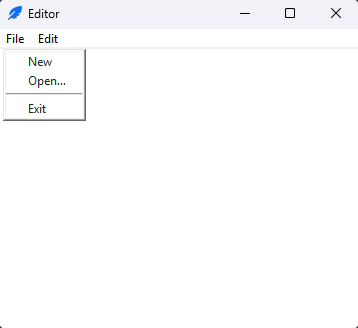
master(ttk.Menu(menubar, …)) and is attached withadd_cascade().tearoff=Falseremoves the dashed “tear this menu off” line at the top — a dated Tk default you almost always want off. (It is a no-op on macOS, which has no tearoffs.)configure(menu=menubar)(equivalentlyapp["menu"] = menubar) installs the bar on a top-level window —Appor aToplevel.
Note
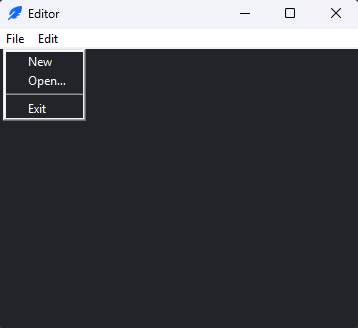
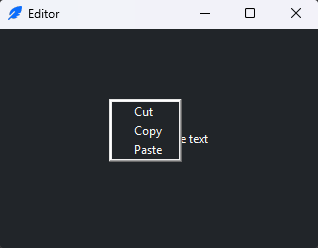
On Windows, menu-bar menus are drawn by the operating system, so a
dropped menu-bar menu keeps the native (light) look and does not follow a
dark theme — visible above. Pop-up menus (tk_popup(), below) are drawn
by Tk and do theme.
Keyboard shortcuts (accelerators)#
An accelerator is the shortcut hint shown at the right of a menu entry. It is
only a label — Tk does not bind it for you. Set accelerator= for the
display and bind the matching event yourself:
file_menu.add_command(label="Save", accelerator="Ctrl+S", command=save)
app.bind_all("<Control-s>", lambda event: save())
Keep the two in step: the accelerator string is cosmetic, the bind is what
actually fires. Use bind_all so the shortcut works regardless of which widget
has focus.
Ctrl on Windows/Linux, Command on macOS
The conventional modifier is Ctrl on Windows/Linux and Command on macOS. Branch on the windowing system so the label and the binding match the platform:
import ttkbootstrap as ttk

app = ttk.App()
is_mac = ttk.windowing_system(app) == "aqua"
accel = "Cmd+S" if is_mac else "Ctrl+S"
seq = "<Command-s>" if is_mac else "<Control-s>"

file_menu.add_command(label="Save", accelerator=accel, command=save)
app.bind_all(seq, lambda event: save())
Stateful items#
Menus can hold items bound to a variable, exactly like the widgets of the same
name. add_checkbutton() toggles a BooleanVar; a group of
add_radiobutton() items sharing one variable is mutually exclusive:
wrap = ttk.BooleanVar(value=True)
view_menu = ttk.Menu(menubar, tearoff=False)
view_menu.add_checkbutton(label="Word wrap", variable=wrap)

theme = ttk.StringVar(value="light")
for name in ("light", "dark"):
    view_menu.add_radiobutton(label=name.title(), value=name, variable=theme)
The menu keeps the variable in sync as the user toggles items — read
wrap.get() / theme.get() in your callbacks, or trace the variable to react
immediately (see Variables & reactivity).
Enabling, disabling, and rebuilding#
Refer to an existing item by its label (or index) and change it with
entryconfigure() — greying out Paste when there is nothing to paste,
say:
edit_menu.entryconfigure("Paste", state="disabled")
edit_menu.entryconfigure("Paste", state="normal")     # re-enable
To decide an item’s state at the moment the menu opens, give the menu a
postcommand — it runs just before the menu is shown, the right hook for
“enable Paste only if the clipboard has text”:
from tkinter import TclError

def refresh_edit():
    try:
        can_paste = bool(app.clipboard_get())
    except TclError:                        # clipboard empty or not text
        can_paste = False
    edit_menu.entryconfigure("Paste", state="normal" if can_paste else "disabled")

edit_menu.configure(postcommand=refresh_edit)
A right-click context menu#
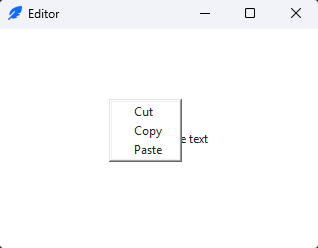
A context menu is the same Menu widget, popped up at the pointer instead of
attached to a bar. Build it once, then bind the right-click event to a handler
that calls tk_popup() with the pointer’s screen coordinates:
import ttkbootstrap as ttk

app = ttk.App()
target = ttk.Label(app, text="Right-click me", padding=40, bootstyle="@secondary")
target.pack(fill="both", expand=True)

context = ttk.Menu(app, tearoff=False)
context.add_command(label="Cut", command=lambda: print("cut"))
context.add_command(label="Copy", command=lambda: print("copy"))
context.add_command(label="Paste", command=lambda: print("paste"))

def show_context(event):
    try:
        context.tk_popup(event.x_root, event.y_root)
    finally:
        context.grab_release()

target.bind("<Button-3>", show_context)

app.mainloop()
event.x_root/event.y_rootare the pointer’s position in screen coordinates, which is whattk_popup()expects.The
try/finallywithgrab_release()is the standard idiom — it releases the menu’s input grab even if the user dismisses the popup without choosing anything.
Right-click across platforms
The right mouse button is <Button-3> on Windows and Linux. On macOS a
right-click is also <Button-2> on some mice, and a Control-click arrives as
<Button-1>; bind the extras when you target macOS:
target.bind("<Button-3>", show_context)          # Windows / Linux / most macOS
target.bind("<Button-2>", show_context)          # some macOS mice
target.bind("<Control-Button-1>", show_context)  # macOS Control-click