

Windows#
App (also exported as ttk.Window) and ttk.Toplevel are enhanced
replacements for tk.Tk / tk.Toplevel that fold window setup — size,
position, icon, constraints — into the constructor, so a window is configured in
one call instead of a scatter of geometry / minsize / wm_* calls
afterward. Keep one App per program (the single-root rule — see
Structuring an app); every
other window is a Toplevel.
Windowing is also where the three platforms diverge most — DPI, transparency, maximize, and borderless windows all behave differently on Windows, macOS, and Linux. This guide flags those differences as it goes, and collects them in Cross-platform behavior at the end.
Creating the main window#
The one thing App needs is nothing — ttk.App() gives you a themed window.
Everything else is a keyword you set once, up front:
import ttkbootstrap as ttk

app = ttk.App(
    title="Invoices",
    theme="nord-light",
    size=(800, 600),
    position=(200, 120),
    minsize=(480, 360),
)

app.mainloop()
Note
theme= is the canonical name; themename= is a permanent alias (the
pre-2.0 spelling). Window is likewise a permanent alias for App — use
whichever reads better. For choosing and switching themes, see
Theming & Colors.
Window geometry#
A window’s size and location are one value in tkinter — the geometry string,
"WIDTHxHEIGHT+X+Y" (e.g. "800x600+200+120"). The size and position
constructor keywords build it for you from (width, height) and (x, y)
pixel tuples; you can also read or set it directly with geometry():
app.geometry()                 # -> "800x600+200+120"
app.geometry("640x480")        # resize, leave position alone
app.geometry("+100+100")       # move, leave size alone
x and y are screen pixels from the top-left, and they are signed and
edge-relative: a negative value measures from the opposite edge, so
position=(-20, -20) pins the window near the bottom-right corner regardless of
screen size.
Read the current size and location back with the winfo_* accessors —
winfo_width() / winfo_height() / winfo_x() / winfo_y():
Warning
winfo_width() / winfo_height() report 1 until the window has been
drawn. Call update_idletasks() first, or read winfo_reqwidth() /
winfo_reqheight() (the requested size, valid immediately). See
Widget & screen info.
Size constraints#
minsize and maxsize are (width, height) tuples that clamp how far the
user can resize the window; resizable takes two booleans, one per axis, to
lock resizing entirely:
app = ttk.App(minsize=(480, 360), resizable=(True, False)) # width flexes, height fixed
alpha sets whole-window transparency from 0.0 to 1.0 (opaque).
Note
Window transparency is immediate on Windows and macOS. On Linux it needs a compositing window manager to take effect, and ttkbootstrap applies it only once the window is first shown.
Window state#
A window is in one of a few states, read and set through state():
"normal", "iconic" (minimized), or "withdrawn" (hidden). The
convenience methods are usually clearer — iconify() minimizes, deiconify()
restores, withdraw() hides without a taskbar entry:
app.iconify()          # minimize
app.deiconify()        # restore
app.state()            # -> "normal" / "iconic" / "withdrawn"
Maximize and fullscreen are where platforms split:
app.state("zoomed")                     # maximize — Windows
app.attributes("-fullscreen", True)     # true fullscreen — Windows & Linux
Note
state("zoomed") maximizes on Windows; on Linux use
attributes("-zoomed", True) (honored by most window managers); macOS has
no programmatic maximize — the green traffic-light button toggles native
fullscreen. attributes("-fullscreen", True) gives borderless fullscreen on
Windows and Linux, and drives native fullscreen on macOS. Provide an Escape
binding to leave fullscreen — there is no titlebar to click.
Second windows — Toplevel#
Every window after the first is a ttk.Toplevel. It shares App’s
constructor conveniences (size, position, iconphoto, …) and inherits
the app’s theme and icon automatically.
Warning
Toplevel’s first positional argument is the title, not the parent —
ttk.Toplevel(app) sets the title to the app object. Pass the parent as
master=:
win = ttk.Toplevel(master=app, title="Details", size=(400, 300))
Toplevel adds a few window-manager options App doesn’t need. Several are
platform-specific — they are honored where they apply and ignored elsewhere, so
they are safe to pass on any OS:
topmost=Truekeeps the window above all others (all platforms).tool_window=Truegives a thin tool-window frame and hides it from the taskbar — Windows only.window_type=...requests a window kind —"splash","utility","tooltip"— for borderless/auxiliary windows. On macOS these map to native window styles; on Linux it is a hint to the window manager; on Windows it has no effect (usetool_window/override_redirect).iconify=Truestarts the window minimized.transient=parentmarks it a satellite ofparent(see below).
Note
override_redirect=True strips all window-manager decoration (no
titlebar, border, or controls) — the basis of a splash screen. It has no
effect on macOS, where enabling it breaks event handling, so ttkbootstrap
ignores it there; for borderless popups on macOS use window_type instead.
Positioning#
place_window_center() centers a window on screen — on the monitor under the
mouse cursor when the optional screeninfo package is installed, and clamped so
the window stays fully visible either way. Call it after the window’s size is
known (the constructor size counts):
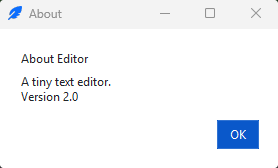
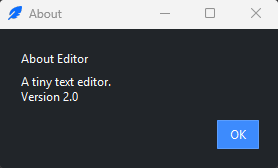
win = ttk.Toplevel(master=app, title="About", size=(360, 200))
win.place_window_center()
Note
Without screeninfo installed, centering falls back to the primary screen,
so on a multi-monitor setup the window may land on the main display rather than
the active one. screeninfo is an optional dependency — ttkbootstrap’s only
required one is Pillow.
Focus, modality & lifecycle#
Beyond its size and position, a window has three behaviors you control in code: which window has the keyboard focus, whether it is modal (blocks the rest of the app), and its lifecycle — mapping, closing, and cleanup. These apply to any window.
Focus#
The focused widget receives keyboard input. Tk moves focus as the user tabs and
clicks; to direct it yourself, call focus_set() on a widget once its window
is mapped:
entry.focus_set() # put the cursor in this entry
focus_get() returns the widget that currently has focus (or None).
focus_force() steals focus even from other applications — it is disruptive,
so avoid it unless you truly must.
Stacking and satellites#
lift() raises a window above its siblings; lower() drops it behind them.
Marking a window transient to a parent makes it a satellite: it stays above
the parent, minimizes with it, and is kept off the taskbar — the right setting
for dialogs and inspectors. Set it in the constructor or later:
win = ttk.Toplevel(master=app, title="Inspector", transient=app)
# or later:  win.transient(app)
Modality#
A modal window blocks interaction with the rest of the app until it closes. Two calls make it so:
grab_set()routes all input to the window — a local grab, confined to your application. (Avoidgrab_set_global(), which grabs the entire screen.)grab_release()ends it, andgrab_status()reports"local","global", orNone.parent.wait_window(win)blocks the calling code untilwinis destroyed.
Because wait_window returns only after the window closes, the window can
leave a result behind for the caller to read — that is how a dialog “returns a
value.” The Open a second window recipe
puts these together into a reusable modal dialog, and the
Dialogs guide covers the shipped
modal dialogs built on the same mechanism.
Lifecycle#
destroy() closes a window for good and tears down its child widgets. Cancel
any after timers or variable traces first, or they fire against dead widgets.
Clicking the window’s close button (✕) does not call destroy() directly —
it asks the window to close. Handle that with on_close (on App and every
Toplevel): your callback runs, then the window is destroyed for you. Return
False to cancel the close and keep the window open:
def confirm_close():
    if not user_confirms():
        return False       # stay open
    # otherwise the window closes — no destroy() call needed

win.on_close(confirm_close)
Pass the same callable as App(on_close=...) / Toplevel(on_close=...) to set
it at construction. on_close handles the close button on Windows, macOS, and
Linux; on macOS, the application menu’s Quit (⌘Q) is a separate, app-wide
action — wire it with ttkbootstrap.Menu.on_quit().
Application icon#
iconphoto= sets the titlebar/taskbar icon from an image path; the default is
ttkbootstrap’s brand icon, and iconphoto=None leaves the platform default.
The format that works best differs by platform — a .ico file on Windows, a
PNG elsewhere — and ttkbootstrap picks the right mechanism for you. A Toplevel
inherits the application icon automatically. See
Show images and icons for building
icons from your own art.
Light & dark#
A window follows the active theme, and its light/dark mode is switched through the
same App: app.theme_mode reads "light" / "dark",
app.toggle_theme() flips between the family’s pair, and
App(light_theme=..., dark_theme=...) designates which two to toggle. The
Theming & Colors guide covers this in
full.
High-DPI displays#
On a high-resolution display, a DPI-unaware app is scaled up by the OS and looks
blurry, or renders everything tiny. Each platform handles this differently, and
App does the right thing by default:
Windows —
Appenables DPI awareness automatically (high_dpi=True), so text and widgets stay crisp. It must happen before the root is created, which the constructor handles; callenable_high_dpi_awareness()yourself only if you are not usingApp.macOS — HiDPI (“Retina”) is handled natively by the OS; nothing to do.
Linux — there is no automatic scaling. Pass a factor after creating the root to scale the whole UI:
enable_high_dpi_awareness(app, 1.75)(1.6–2.0is typical for a 4K panel).
For code that sets pixel geometry or builds image assets, convert logical sizes to
physical pixels for the current display with scale_size:
ttk.scale_size(app, 24)          # 24 logical px -> physical px for this display
ttk.scale_size(app, [24, 24])    # a (width, height) pair -> scaled ints
Cross-platform behavior#
Windowing is the corner of tkinter where “write once, run anywhere” leaks the
most. The differences below are handled or guarded by App/Toplevel where
possible, but they affect what you can rely on:
Feature |
Windows |
macOS |
Linux (X11) |
|---|---|---|---|
High-DPI |
auto ( |
native (Retina) |
manual |
Transparency ( |
immediate |
immediate |
needs a compositor |
Maximize |
|
none (native fullscreen) |
|
|
✓ |
— |
— |
|
— (use |
native styles |
WM hint |
|
✓ |
ignored (breaks events) |
✓ |
Taskbar grouping |
by app id (automatic) |
Dock (native) |
WM-dependent |
Sidebar — the deferred-config seam
A few settings need to apply before any widget is built but read most naturally
at the top of the file, before App() exists. set_locale,
set_global_family, and set_default_button queue when called
pre-root and flush the moment the root comes up (they apply live if a root
already exists), so this works as written:
import ttkbootstrap as ttk

ttk.set_global_family("Segoe UI")     # queued...
ttk.set_default_button("primary")

app = ttk.App()                        # ...applied here
See also
Structuring an app — the single-root rule.
Theming & Colors — themes and light/dark.
Widget & screen info — the
winfo_*size/position accessors.Open a second window — the second-window recipe.